


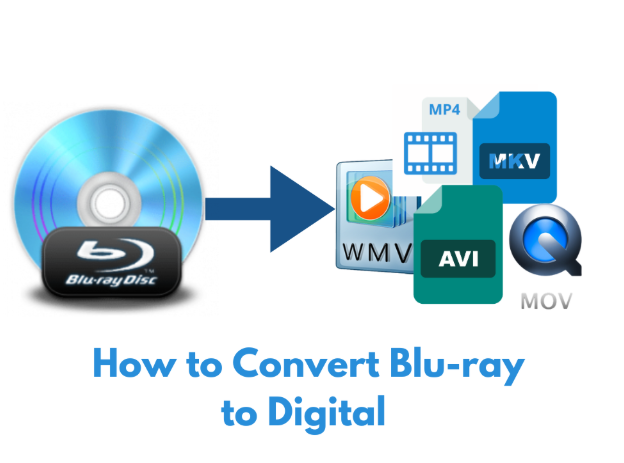
In the past, Blu-ray discs were an important way for people to obtain high-quality videos. Blu-ray discs are famous for their outstanding picture and sound quality and provide excellent visual and auditory enjoyment. However, with the emergence of streaming services and electronic devices, people can access various video content anytime and anywhere. Plus, many devices don’t come with a disc drive, leading to the decline of Blu-ray discs. Can you convert Blu-ray to digital? How to digitize Blu-ray? In this article, we will bring four effective tools to convert Blu-ray to digital.
Part 1: Convert Blu-ray to Digital with Leawo Blu-ray Ripper
Leawo Blu-ray Ripper is the top 1 in the rating of best Blu-ray rippers. Why? As a professional conversion software, it comes with rich features and delivers high working efficiency. It’s famous for its user-friendly interface, making it easy to navigate for pros and newbies.
Here are some features of Leawo Blu-ray Ripper:
- Wide format support: It can convert Blu-ray discs and DVDs into over 180 different audio and video formats, including common MP4, AVI, MKV, etc.
- High definition and 3D conversion: Leawo Blu-ray Ripper supports 4K high-definition video conversion. That means the high-quality image of the original video can be well reserved. Not only that, 3D video conversion brings a diverse viewing experience.
- Batch Conversion: Allows users to add multiple Blu-ray or DVD files for batch conversion at the same time, greatly saving time and effort and improving conversion efficiency.
- Video Editing Capability: Provides basic video editing functions such as cropping, merging, adding watermarks, adjusting brightness and contrast, etc., allowing users to personalize videos according to their own needs.
- Subtitle and track selection: Users can freely choose different subtitles and tracks to adapt to different languages and viewing habits.
- Acceleration Technology Support: Adopting NVIDIA CUDA, AMD APP and other acceleration technologies, compared to traditional conversion methods, it can increase conversion speed by up to 6 times and shorten waiting time.
- Built-in media player: The software has a built-in media player. It can be used to preview the content of Blu-ray discs or DVDs before conversion.
Here is how to rip Blu-ray to MP4 with Leawo Blu-ray Ripper. To start with, download and install the Leawo Blu-ray Ripper on your computer.
Step 1. Load Blu-ray File
Run the software. Under the “Convert” section, choose the “Add Blu-ray/DVD” button to import the Blu-ray file. Then choose the subtitles and audio tracks based on your needs.
Step 2. Set Output File
Hit the drop-down menu by the side of “Add Blu-ray/DVD”. Hit “Change” to set MP4 as the output format.
Step 3. Start Converting
Hit “Convert” to start the process. You are required to set the saving path and set after-conversion parameters. The conversion progress is trackable.
Congrats. The Blu-ray disc content is now in MP4 format and can be shared or saved as you want. It only takes a few minutes and a few steps. Quite easy, doesn’t it?
Part 2: Convert Blu-ray to Digital with HandBrake
HandBrake is a completely free video transcoding tool. You can import different input formats and convert videos to common formats such as MP4 and MKV. If you need, you can do some basic video editing operations on it, such as cropping and adding subtitles. The working speed is quite high while it retains a high conversion quality.
The following are the features of HandBrake:
- Open Source Free: HandBrake is an open-source software, so you don’t need to pay any fees. It is suitable for those with a limited budget.
- Various Output Format: You can convert Blu-ray to multiple video and audio formats, including AVI, MP4, MKV, FLV, etc.
- Device compatibility: HandBrake is also compatible with different devices such as smartphones and tablets. All you need to do is select the corresponding preset.
- Video Editing: It has basic video editing functions. You can crop video frames, and adjust video brightness, contrast, saturation, etc.
- Batch processing capability: This allows users to add multiple video files for batch conversion at once, improving processing efficiency and saving time.
Here is how to convert a Blu-ray disc to MP4 using HandBrake
You have to download and install HandBrake first.
Step 1. Import Blu-ray content
Open the HandBrake software and click on the “Source” option. Select the Blu-ray disc in the optical drive.
Step 2. Set output parameters
In the “Output Settings” section, select “MP4” from the “File Format” drop-down menu. Then choose Video Encoding, resolution, frame rate and adjust other parameters in this step.
Step 3. Specify output directory
Click on the folder icon to the right of “Target”, select the location where you want to save the converted MP4 file.
Step 4. Start Conversion
Click the “Start Encoding” button in the bottom right to start converting the content of the Blu-ray disc into MP4 files. The progress can be viewed on the interface during the conversion process.
Part 3: Convert Blu-ray to Digital with Vudu Mobile Service
Vudu Mobile Service is a mobile service of the Vudu platform under Fandango. You can access over 200,000 film and television content through it, including new and classic old films. However, it is not just a streaming platform. It launches a disc-to-digital service, which can serve as a Blu-ray Ripper to convert Blu-ray discs to digital files.
Vudu Mobile Service has the following characteristics:
- Excellent picture quality and sound effects: This service can retain the 4K UHD during digitalization and allow you to enjoy a high-quality viewing experience.
- Multi device compatibility: It can be run on multiple mobile devices operating systems, including iOS and Android.
- Easy to operate: With a simple and intuitive user interface, it is easy to follow the guide and convert Blu-ray to MP4.
For Android users:
Step 1. Download the VUDU app on your phone.
Step 2. Sign in to your VUDU account.
Step 3. Select Disc to Digital and grant the app access.
Step 4. Scan the UPC barcode on your Blu-ray disc, pay for the service and you can enjoy it soon. The fee for converting Blu-ray to HDX is $2.
For iPhone users:
Step 1. Go to vudu.com/disc on a browser and choose Convert Disc.
Step 2. Sign in to your account and allow app permissions.
Step 3. Scan the disc’s barcode. Then you can select output quality to enjoy the digital copy.
Part 4: Convert Blu-ray to Digital with MakeMKV
MakeMKV is a powerful video conversion software that can convert DVDs, Blu-ray discs, and some video files to MKV format. It does a great job of preserving the original audio and video quality and multi-channel information. MakeMKV can be used on multiple platforms such as Windows, Mac, and Linux.
- Strong format conversion ability: It can convert video content from DVD and Blu-ray discs to MKV format without any loss.
- Retain original quality: During the conversion process, the resolution, frame rate, encoding format, and other parameters of the original video can be fully preserved to ensure maximum audio and video quality.
- Batch Conversion: You can add multiple video files or disc contents at once for conversion instead of repeating the process over and over again. It saves you lots of time.
- Easy and convenient operation: The interface is simple and intuitive. You do not need complex operations or professional knowledge to digitalize Blu-ray in just a few steps.
- Free Trial and Update: You can get a free trial version to fully experience the features before purchasing.
Here is how to convert a Blu-ray disc to MKV using MakeMKV:
First, download and install MakeMKV from the website.
Step 1. Load Blu-ray Disc
Run MakeMKV and it will automatically detect the inserted Blu-ray disc. If there is no automatic loading, you can click on the “File” > “Open Disc” to choose the Blu-ray files.
Step 2. Select output settings
There are default settings. But you are allowed to make personalized settings as needed. For example, if you only want to retain audio and subtitles in a specific language, you can only check the corresponding audio and subtitle tracks.
Step 3. Set output directory
Hit “Set output folder” to set where to save the MKV video.
Step 4. Start Conversion
Click the “Start” button and MakeMKV will start converting the content of the Blu-ray disc to MKV format.
Conclusion
In summary, we introduce four useful tools to convert Blu-ray to digital files. Each of them has their own advantages. But Leawo Blu-ray Ripper stands out with its simple interface and rich features. Give it a try and enjoy your Blu-ray discs now.